How RAM Gets Consumed in Google Chrome
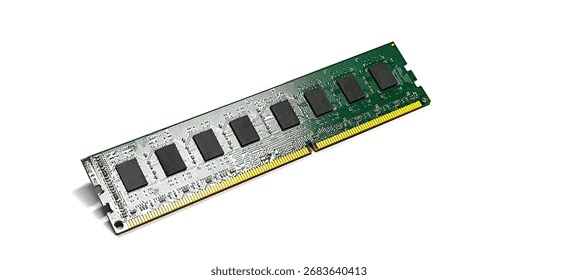
Image source: Shutterstock. https://www.shutterstock.com/image-photo/upgrading-personal-computer-concept-close-260nw-2683640413.jpg
Whenever a laptop starts slowing down or freezing up for no obvious reason, most people assume something is wrong with it. A lot of the time, though, the real reason is simpler than that. The computer just ran out of memory. This description explains how that happens, specifically how Google Chrome consumes RAM every time it runs. RAM stands for Random Access Memory, and it is the short-term memory of a computer. It holds whatever the computer is actively working on, so things can run smoothly. The process described here runs on any computer or laptop running Google Chrome and starts the moment a new tab is opened. Chrome and the operating system, which is the software that runs the whole computer, handle it together automatically in the background. The user never sees any of it happening. There are three main steps in the process: Chrome asks the operating system for memory, the OS finds available space and hands it over, and Chrome fills that space with everything the tab needs to load and run. Understanding how this works helps explain a lot of the performance problems people run into every day without knowing why.
What RAM Is and Why It Matters
A good way to think about RAM is like a desk. The hard drive is like a filing cabinet across the room. Everything being worked on right now sits on the desk. Everything else stays in the cabinet. The bigger the desk, the more you can have out at once without having to keep getting up to swap things in and out. When the desk gets full, you must keep going back and forth to the cabinet, and that takes time. That back-and-forth is what makes a computer feel slow.
Most laptops come with either 8 GB or 16 GB of RAM. For just browsing and light work, 8 GB is usually fine. But once gaming, video editing, or running a bunch of apps at the same time comes into the picture, it runs out quickly. When that happens, the computer starts using part of the hard drive as extra memory, which is called virtual memory. The problem is that hard drives are a lot slower than RAM, so everything starts to feel sluggish.
Graphics cards are worth mentioning here, too. Laptops with a dedicated GPU like an NVIDIA RTX have their own memory, called VRAM, just for visuals. That means the GPU is not touching system RAM at all. Budget laptops use integrated graphics instead, which share the same pool of RAM as Chrome and everything else running at the same time. So two laptops with the same amount of RAM can perform very differently depending on whether the graphics are dedicated or integrated.
Table 1. Recommended RAM, GPU, and Budget
| Preference | Min RAM | Recommended | GPU Type | Estimate price |
| Basic browsing and light tasks | 8 GB | 8 GB | Integrated | $300 to $500 |
| Gaming and Chrome open | 16 GB | 32 to 64 GB | RTX 5070 or higher | $700 to $1000 |
| Content creation | 16 GB | 32 to 64 GB | RTX 4090 or higher | $1000 to $1500 |
| Gaming plus content plus browsing | 32 GB | 64 GB | RTX 5070 to 5090 | $1500 to $2500 |
| Professional level work | 64 GB | 64 GB | RTX 5080 or higher | $2500 and up |
How Chrome Requests Memory
Most apps run as one single process, meaning one block of memory covers the whole program. Chrome works differently. Every tab gets its own separate process. So, if four tabs are open, that is four separate processes running at the same time, plus a handful of background utility processes that run no matter what.
As soon as a tab opens, Chrome sends a request to the operating system asking for a block of RAM. It happens automatically and takes only a fraction of a second. The OS responds by finding available memory, reserving a block, and handing it over to Chrome so the tab can start loading.
The reason Chrome runs each tab separately is to make it more reliable. If one-tab crashes, the others keep running normally instead of the whole browser going down. The tradeoff is that it uses more memory. As shown in Figure 1, background utility processes like the storage service at 13.6 MB, network service at 20.2 MB, and audio service at 13.1 MB are already using memory before a single webpage has even loaded.
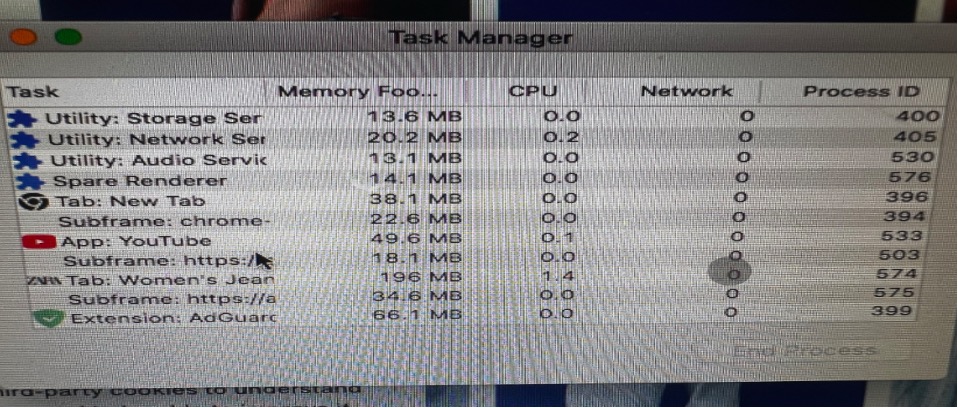
Figure 1: Chrome Task Manager showing Memory Footprint, CPU usage, and Process ID for each active tab and extension. Screenshot taken from a 2012 Apple Mac with 16 GB RAM and 1 TB storage.
How Each Tab Consumes RAM
Once Chrome makes its request, the operating system takes over. The OS manages all the RAM on the computer and keeps track of what is being used and what is still free. When Chrome asks for memory, the OS finds an open block, marks it as reserved for that Chrome process, and passes it along.
The Process ID column in Figure 1 shows the unique number the OS assigns to each Chrome process to keep track of them. Every row in that Task Manager view is a separate process the OS is managing at that moment. Some are tabs the user opened. Some are background services Chrome runs on its own.
The OS hands over memory and forget about it. It keeps checking how much each process is using and what is left in the overall pool. When memory starts getting tight it begins making decisions, like suspending processes that have not been active recently or moving data out of RAM and into virtual memory to free up space.
How Each Tab Consumes RAM
Once Chrome has its block of memory, it starts filling it up right away. Even a blank new tab starts at around 38 MB just from Chrome preparing the interface for it. The number grows based on what the page loads. Looking at Figure 1, YouTube sitting idle is already at 49.6 MB. A shopping site with a lot of images and background activity jumped to 196 MB just from being opened once. The AdGuard extension is sitting at 66.1 MB even though it is not visibly doing anything.
A lot of users do not realize that extensions are running the whole time Chrome is open, not just when they are clicked. They are active processes sitting in the background consuming memory continuously. Some extensions are worse than others, and poorly coded or malicious ones can quietly eat up RAM without showing any sign of it.
The CPU column in Figure 1 shows which processes are actively working. A tab at 0.0 is idle. A tab at 1.4 is running scripts in the background even if the screen looks still. The Network column shows whether data is moving. Most tabs show 0 when not loading but some sites keep pinging the server quietly the whole time, they are open.
When available RAM gets low, Chrome starts suspending tabs that have not been used in a while to recover some space. That is why clicking an old tab sometimes makes it reload from scratch instead of just switching to it. It was put to sleep. When even that is not enough, the OS starts pushing data from RAM onto the hard drive using virtual memory. Hard drives are much slower than RAM so as soon as that starts happening, the whole computer slows down. Tabs take longer to switch. Games stutter. Video editing software freezes. Everything feels unresponsive.
For someone gaming with Chrome open in the background, this comes up a lot. The game needs memory for graphics, physics, and everything else running in it. Chrome is already sitting there using hundreds of megabytes across its tabs and extensions. On an 8 GB laptop with the OS taking its own share on top of that, the two combined can hit the ceiling quickly and the lag starts.
Chrome consuming a lot of RAMS is not really a flaw. It is how the browser was built to work. Running each tab as its own process makes it stable and reliable, but it means memory adds up fast. The process runs in three stages every time a tab opens: Chrome requests memory from the OS, the OS reserves a block and hands it over, and Chrome fills that block with everything needed to run the tab. Extensions and background services add on top of that. As more tabs open, available RAM keeps shrinking until the system must fall back on virtual memory, and that is when the slowdowns kick in.
For anyone buying a laptop, RAM is one of the most important things to get right. 8 GB will start to struggle with gaming or content creation and Chrome open at the same time. 16 GB handles most situations well. 32 GB gives real room to work without hitting the limit. And having a dedicated GPU means visuals get their own separate memory pool, which makes a noticeable difference for anything demanding.
Every tab, every extension, and every app running at the same time is pulling from the same limited pool. The computer does not prioritize what matters most to the user. It just runs out of space, and everything slows down. Knowing how the process works makes it a lot easier to understand why it happens and what to do about it.

